Print graph paper at actual size
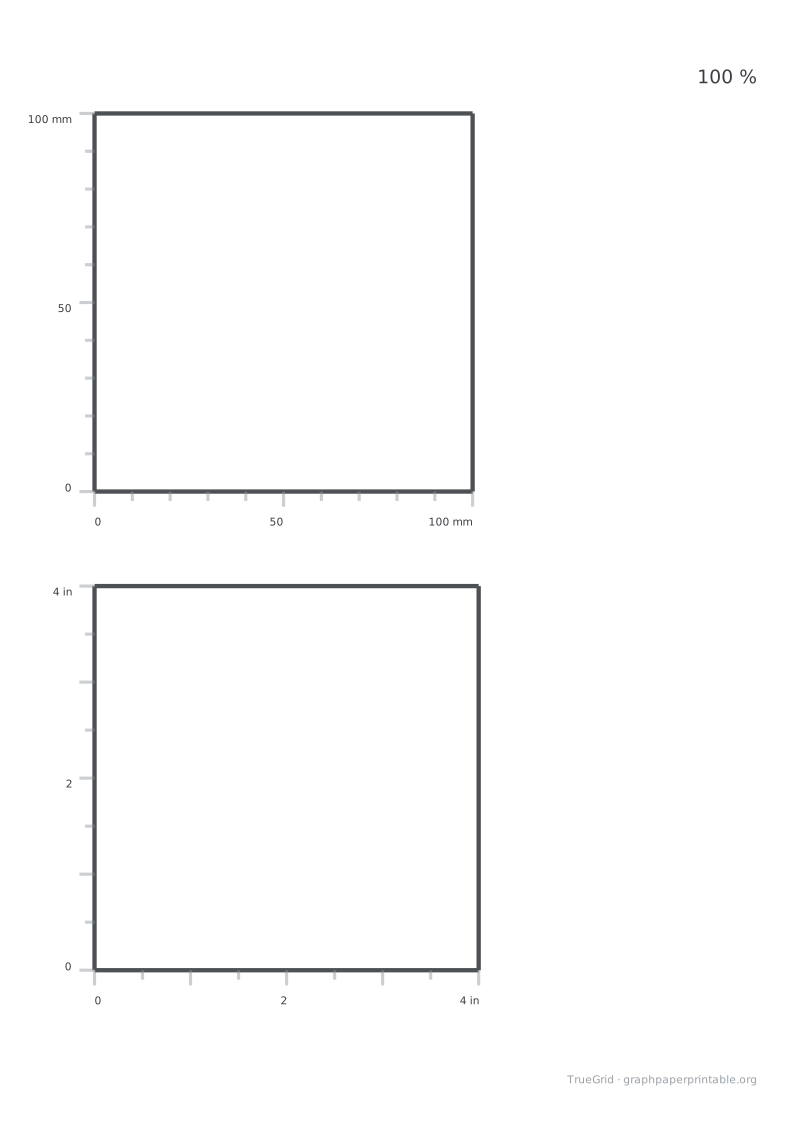
Match the PDF to your paper, print at 100 %, then measure the check page.
What goes wrong
Fit to page reduces a PDF to the printer's selected printable area. That changes the spacing even when the correct PDF was downloaded.
Set it up
If 100% is not shown, look for “Actual size” or “Scale”.
Chrome / Edge
- Open the PDF and choose Print.
- Open More settings.
- Set Paper size to match the PDF.
- Set Scale to 100, not Fit to page.
Firefox
- Open the PDF and choose Print.
- Choose the paper size that matches the PDF.
- Under Scale, select 100% or Actual size.
- Turn off Fit to page width.
Safari (macOS)
- Open the PDF and choose File → Print.
- Select the matching Paper Size.
- Set Scale to 100%.
- Turn off Scale to fit paper size.
iOS
- Tap Open PDF, then Share → Print.
- Choose the paper size that matches the PDF.
- Turn off Scale to Fit if it is shown.
- If 100% is missing, look for Actual Size or Scale.
Android
- Open the PDF and choose Print.
- Select the matching paper size.
- Open More options and set Scale to 100%.
- Turn off Fit to page.
Adobe Reader
- Choose File → Print.
- Under Page Sizing & Handling, select Size.
- Choose Actual size, not Fit.
- Check that the selected paper size matches the PDF.
Measure
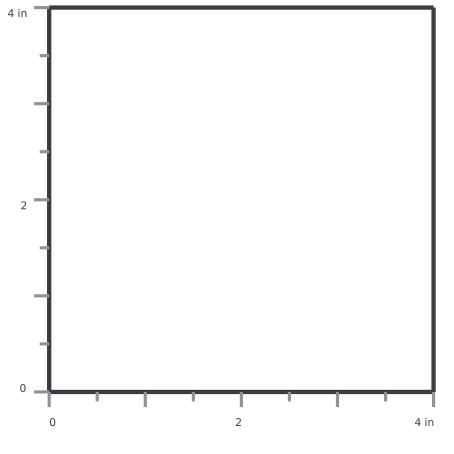
Measure both the horizontal and vertical lines on the check page.
| Measured | What it means |
|---|---|
| 100 mm / 4 in | OK. Print the rest. |
| 95–96 mm | Fit to page is still on. |
| Different on the two axes | The paper size does not match the file. |
Still off?
Confirm the paper size in the printer driver, try another PDF viewer, and disable borderless mode before testing again.
Questions
Where is Actual size in Chrome or Edge?
Open More settings and set Scale to 100. Make sure the paper size matches the downloaded file.
What should I choose in Adobe Reader?
Under Page Sizing & Handling, choose Actual size rather than Fit.
Does a correct ruler make this a precision instrument?
No. The check helps detect common scaling errors; it is not a calibration certificate.